How to read negatives (and see them as photos on your phone)
How to read negatives, step by step: which side faces you, what the edge numbers mean, and how to see a negative as a normal photo on an iPhone or Android.
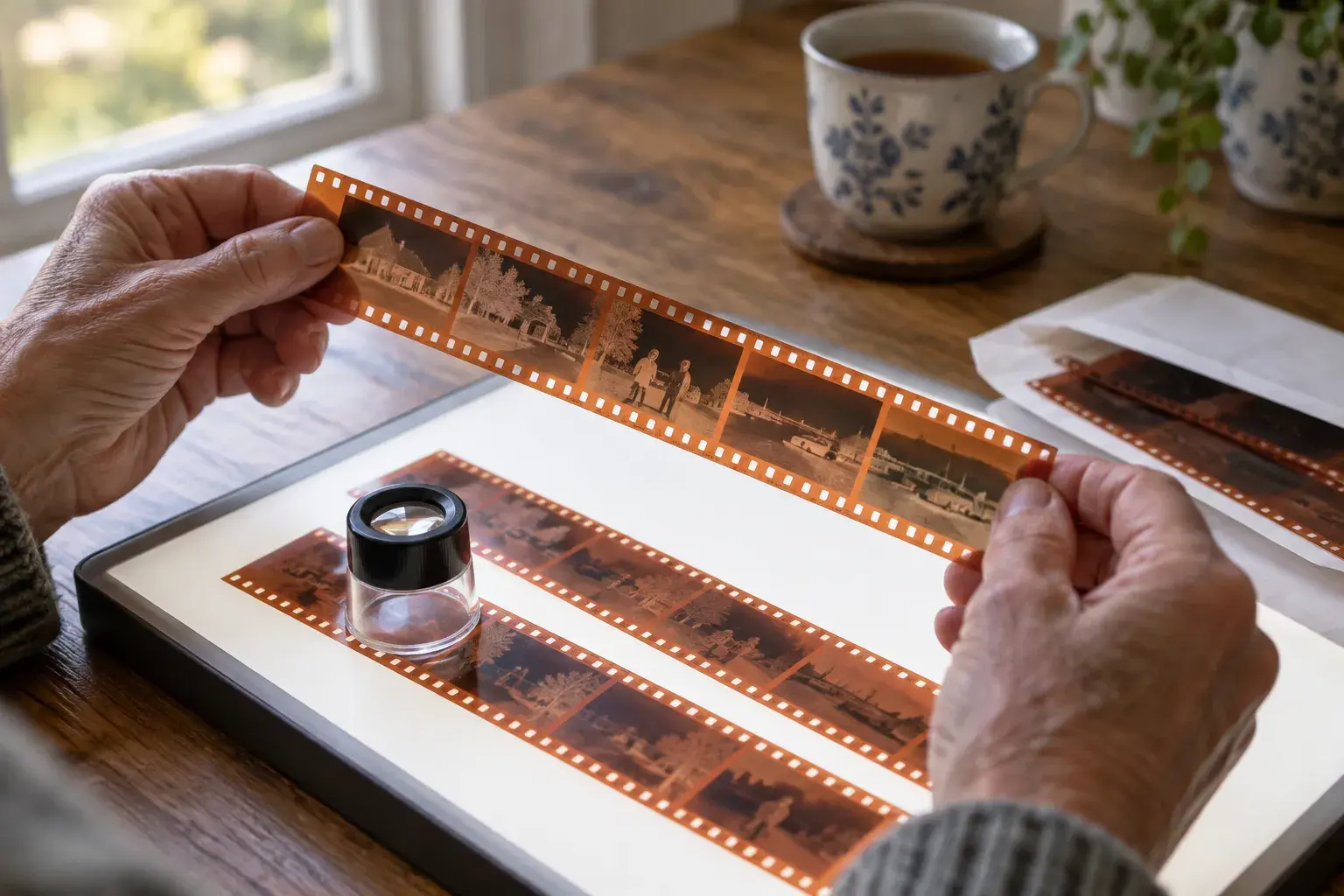
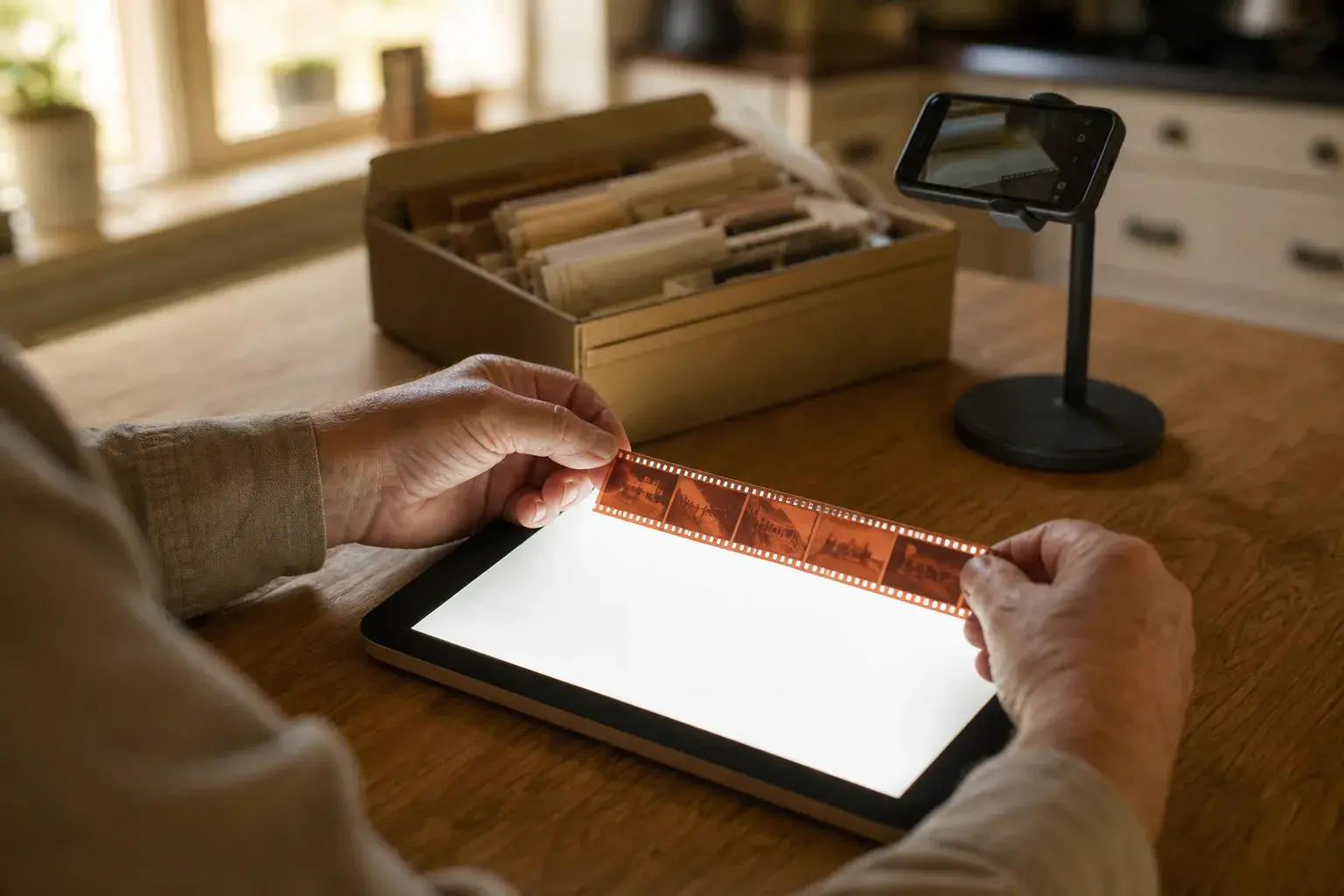
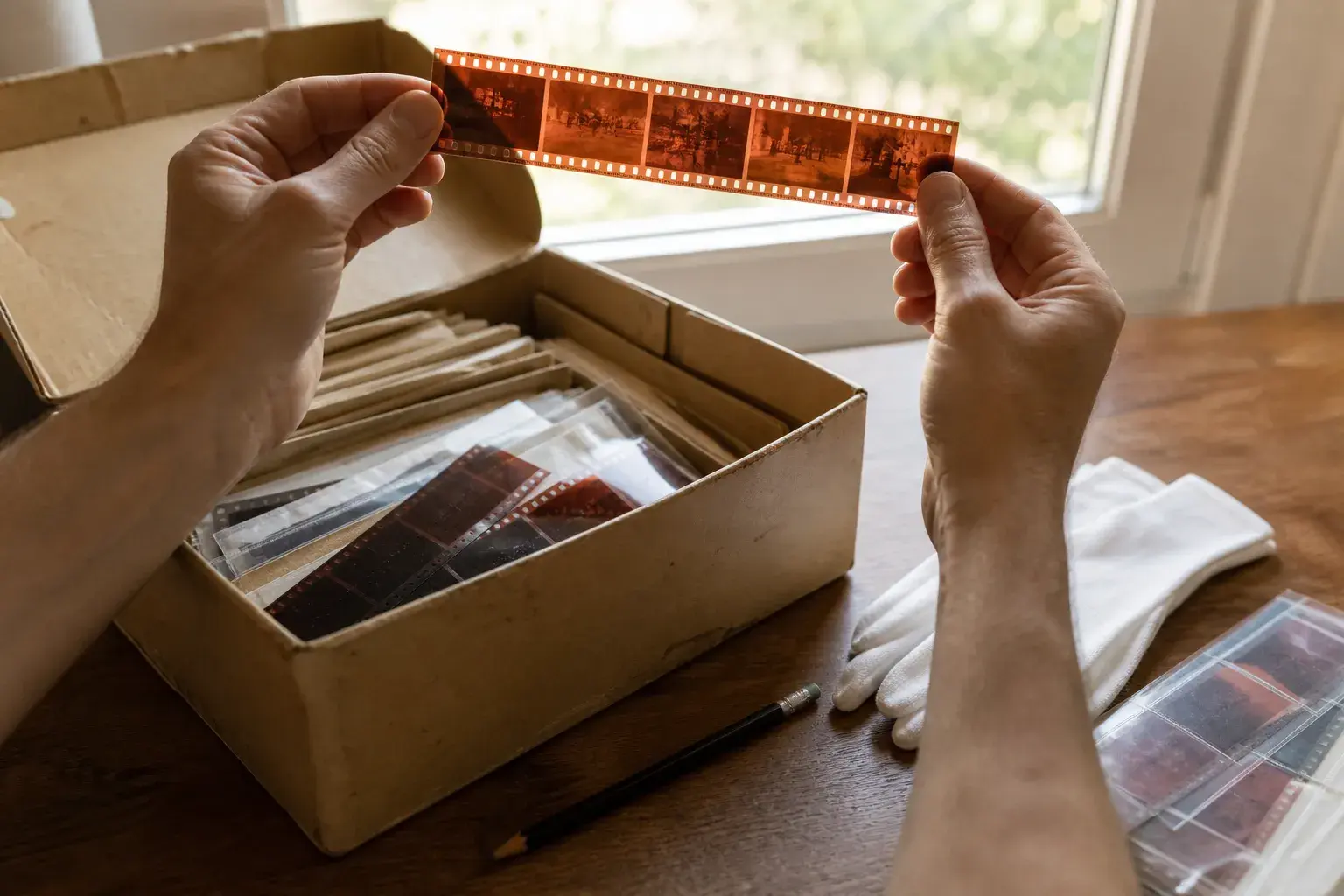
Learning how to read negatives takes about five minutes. A negative is your photo with light and dark swapped: whatever was dark in real life (hair, a black coat, the shade under a tree) is clear or pale on the film, and whatever was bright (the sky, a white dress, a lamp) is dark. Color negatives also swap every color for its opposite and sit on an orange-brown base. Hold the strip against a bright, even light, shiny side toward you, and think in reverse.
You can also skip the mental gymnastics. Turn on color inversion on your phone, point the camera at the negative, and you see a rough positive on the screen in seconds. This guide explains what you are looking at, which side is which, what the small numbers and words along the edge mean, how to find one particular picture on a strip, how to preview negatives on an iPhone or Android phone, and how to tell at a glance whether a frame is worth scanning.
What a negative shows, and why it looks so strange
When film is exposed in a camera, the parts that receive the most light become the darkest after developing. Richard Photo Lab puts it simply in its guide to reading film exposures: the dark areas of a negative are the light areas of the final picture, and the other way round. Paper prints were made by shining light through the negative, which flipped everything back.
That gives you a few rules that work on every negative:
| In the real scene | On a black and white negative | On a color negative |
|---|---|---|
| Bright sky, snow, a white shirt | Dark gray to almost black | Dark, often brownish |
| Deep shadow, black hair, a dark suit | Clear or very pale | Clear or pale orange |
| Blue sky or blue clothes | Dark | Yellow, amber or brown |
| Green grass and trees | Medium tones | Pink or magenta |
| Red dress, red car | Medium to light | Blue-green (cyan) |
| Fair skin | Darkish | Dark blue-gray |
The orange color of the whole strip is not a stain and not a sign of age. Color negative film has a built-in orange "mask" that helped the original prints come out with natural colors. It is there on the day the film is developed, which is why even the clear gaps between frames look orange.
Faces are the hardest thing to recognize, because skin turns dark and teeth and the whites of the eyes turn dark too, while dark hair glows pale. People on a negative often look like ghosts with dark faces and white hair. Once you know that, you start recognizing poses, shapes and places instead.
Is it a negative or a slide?
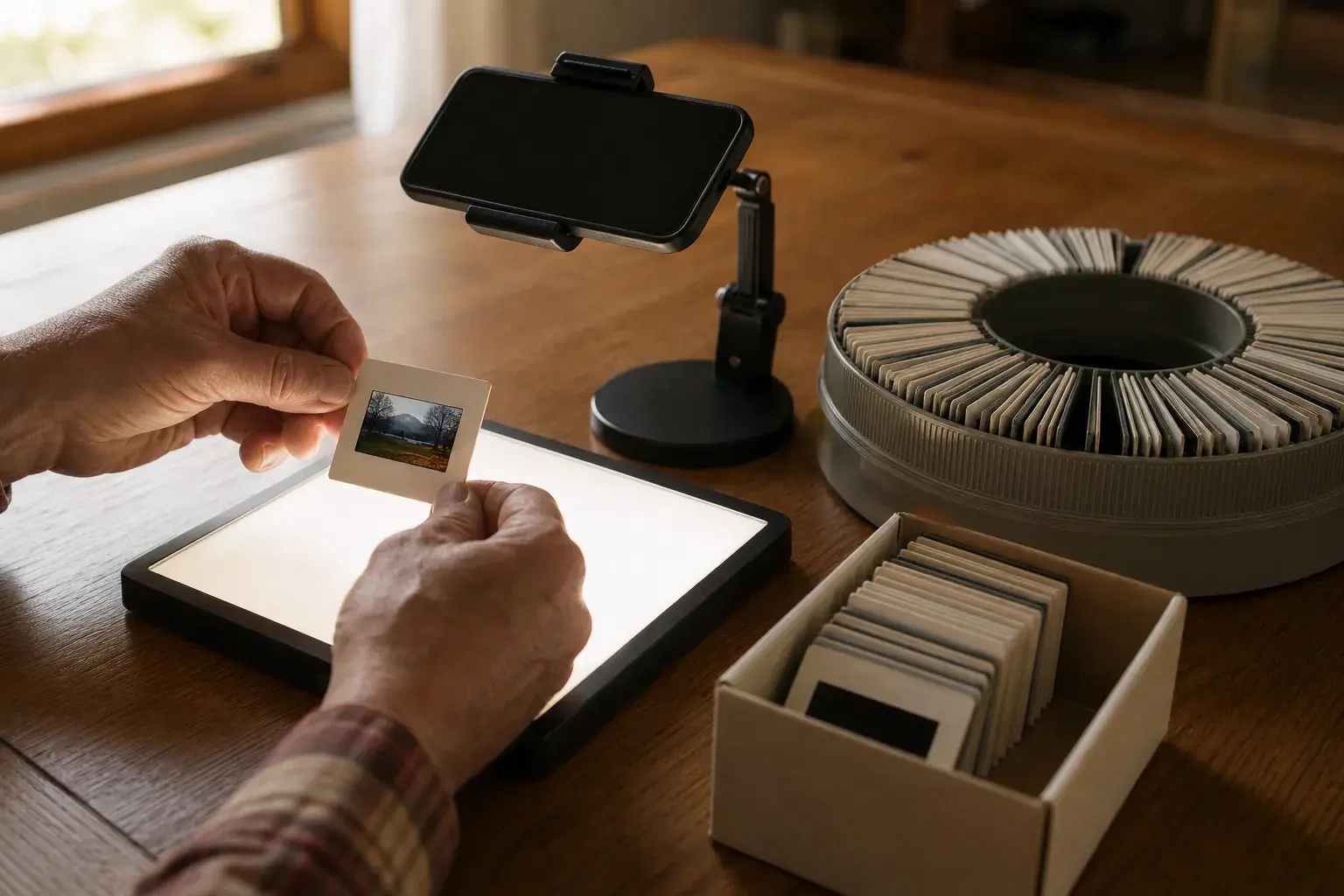
If the picture already looks normal (blue sky, natural skin) and sits in a small square cardboard or plastic frame, it is a slide, not a negative. Slides are positive film: you view them as they are, no inverting needed. Our guide to digitizing slides at home covers those.
Which side is which: the shiny side and the image side
Every negative has two sides:
- The base side is glossy and smooth, like clear plastic.
- The emulsion side carries the image. It looks slightly duller, a little matte, and at an angle to the light you can sometimes see a faint relief in it.
Most strips also curl a little, usually with the dull emulsion side on the inside of the curve.
Look at the negative with the shiny side toward you. That way the picture is the right way round, not mirrored. A quick check: if the words and numbers printed along the edge read normally, you are looking from the correct side. If they read backwards, flip the strip.
Hold film only by its edges. The Library of Congress recommends clean hands or new nitrile gloves and warns against touching the face of the film, including the emulsion.
What the markings along the edge tell you
Hold a 35mm strip against the light and you will see small printing between and beside the sprocket holes. This is what it means:
- Frame numbers. Small numbers next to each picture (1, 2, 3, and so on up to 24 or 36), often with half numbers like 12A between them and little arrows pointing at the frame. They tell you the order in which the pictures were taken. Write the number down when you find a frame you like: it is the easiest way to name your scans or to find the frame again later.
- The film brand and type. Words like Kodak, Fujicolor, Agfa, Konica or Ilford, sometimes with a film name or a code number. This is useful when you scan: it tells you whether the roll was color or black and white film.
- "SAFETY". On older film this word means the base is safety film, not the flammable nitrate used in the first half of the 20th century. The National Park Service film history timeline notes that manufacturers began printing "NITRATE" or "SAFETY" on film edges around 1930. If a strip from your grandparents' era says NITRATE, or has no marking at all, read our guide on what to do with old negatives before you handle it further.
- A row of stripes like a barcode. On many films from the 1980s onward, a barcode along one edge lets the lab's machines identify the film. You can ignore it.
What the edge does not tell you is the date the photo was taken. For that, look at the paper envelope from the lab (many carry a date stamp or an order date), the back of matching prints, or small digits inside the picture itself: some cameras printed the date into the corner of each frame (on the prints, it shows up in orange).
How to find one particular photo on a strip
Labs usually cut 35mm film into strips of four to six frames, each frame 36 x 24 mm. Medium format film (called 120) has bigger frames, often square, three or four to a strip. Here is how to track down the picture you are looking for:
- Start with the prints, if you have them. Many labs printed the frame number on the back of each print. Match the number to the edge of the strip.
- Look for an index print. In the 1990s and 2000s, many labs added a sheet of tiny thumbnails with frame numbers to the envelope. It is a positive map of the whole roll.
- Sort by event. Frames from the same day look alike: the same room, the same light, the same shapes. A strip that starts with a birthday table and ends at the beach is telling you the order of the day.
- Read shapes, not faces. Look for the outline of a group, a doorway, a car, a Christmas tree. Faces become clear once you invert the picture.
- Use magnification. A small loupe (a magnifier you set on the film) or the zoom on your phone camera helps a lot on 35mm frames.
How to see a negative as a normal photo on your phone
Your phone can show a negative as a positive in real time, using a setting meant for accessibility. You need two things: a bright, even light behind the negative, and the phone's color inversion turned on while you look through the camera.
For the light, use a tablet or laptop showing a blank white page at full brightness, a light pad, or a window on a cloudy day. Do not use the phone you are looking through as the light source.
On an iPhone: Classic Invert
- Open Settings > Accessibility > Display & Text Size.
- Turn on Classic Invert. The whole screen changes color; that is expected.
- Open the Camera app and point it at the negative held against the light. The negative now shows as a positive.
- Turn Classic Invert off again when you are done.
Use Classic Invert, not Smart Invert. Apple's display settings guide explains that Smart Invert leaves images and media unchanged, so the negative can stay a negative. Classic Invert reverses every color on the screen.
Tip: color negatives will look cold and bluish, because inverting the orange mask turns it blue. For recognizing faces it helps to drop the color entirely: in the same Display & Text Size menu, turn on Color Filters and choose Grayscale. To switch the inversion on and off quickly, add it to the Accessibility Shortcut in Settings > Accessibility, then triple-click the side button.
On an Android phone: Color inversion
- Open Settings > Accessibility.
- Under Color and motion, tap Color inversion and turn on Use color inversion. On Samsung Galaxy phones the option sits under Accessibility > Vision enhancements. On other brands, type "inversion" into the search bar at the top of Settings.
- Open the camera and point it at the negative against the light.
Google's color inversion help page also shows how to add a shortcut so you can toggle it with one tap.
The catch: the photo you take stays a negative
Inversion only changes what the screen shows. If you press the shutter in the normal Camera app, the saved photo is still an orange negative. The trick is perfect for browsing a box and finding the frames you want, but it does not convert anything.
From a quick look to true colors
The inverted preview has another limit: color negatives look blue or cyan, because the orange mask turns blue when you invert it. That is fine for recognizing a face, but you cannot judge real colors that way. Black and white negatives, which have no orange mask, look almost right with simple inversion.
To see real colors, and to keep the result, the orange mask has to be removed. That is what a scanning app does. In Film Scanner, you choose the color negative profile and the camera shows the inverted picture live while you aim, without touching your phone's settings. When you capture, the app finds the frame, crops it and converts it using the color of the clear film border, which compensates for the orange mask, and Auto color in the editor neutralizes the blue cast that is left. Scanning is free.
Once you have found the frames that matter, our guide on how to scan film negatives with your phone walks through the full setup, from the light source to fixing color.
Reading the quality of a negative: is this frame worth scanning?
Looking at a negative against the light also tells you how good the scan can be. Photographers talk about "density": how dark the negative is overall.
| What you see | What it means | What to expect |
|---|---|---|
| Good contrast, detail in both dark and pale areas | Well exposed | Scans easily, natural result |
| Very pale and see-through, little detail in the clear parts | Thin negative: too little light reached the film | Grainy, flat scan, dark areas turn muddy; faces can usually still be saved |
| Very dark overall, hard to see through | Dense negative: a lot of light | Often scans better than you would think; color negative film tolerates extra light |
| Completely clear, but the edge printing is visible | The film was developed but never exposed | No picture to recover |
| Completely black, including the edges | Light reached the film before developing | Usually no picture to recover |
| Fine scratches, dust, fingerprints | Handling marks | Scan anyway; clean gently first |
| Spidery webs or fuzzy spots, or a vinegar smell | Mold or film decay | Separate these and see what to do with old negatives |
When in doubt, scan it. A frame that looks hopeless against the light sometimes holds a face worth keeping, and the Premium AI tools in Film Scanner (restoration, upscaling) can help with the important ones afterwards.
Common problems when viewing negatives
- The whole phone looks strange. That is Classic Invert or color inversion. Turn it off in Accessibility, or use the shortcut.
- The negative still looks like a negative on the iPhone. You turned on Smart Invert. Switch to Classic Invert.
- Everything looks blue. That is the orange mask, inverted. It is normal; a scanning app with a color negative profile removes it.
- Stripes or a grid in the picture. You are lighting the film with a screen. Put a sheet of printer paper between the screen and the film.
- The picture is mirrored. Flip the strip so the shiny side faces you.
- The camera will not focus that close. Move back a little and use 2x zoom instead.
- The picture looks normal before inverting. It is a slide or a print, not a negative. View it as it is.
Frequently asked questions
How do you view negatives without a light box?
Hold the strip against any bright, even light: a tablet or laptop screen showing a white page at full brightness, or a window on an overcast day with a sheet of paper taped to the glass. Avoid a bare bulb, which lights the middle and leaves the corners dark.
How can I see negatives as positives?
Turn on Classic Invert on an iPhone or Color inversion on Android and look at the negative through the camera. For a positive you can save, with real colors, use a scanning app that converts negatives, such as Film Scanner.
How do you view negatives on a computer?
The computer needs a digital copy first. Photograph the negative with your phone against a light, or use a flatbed scanner with a transparency unit, then invert the image. An editor's simple "invert" works for black and white; color negatives also need the orange mask removed, or they come out blue.
Which side of a negative should face me?
The shiny side. When the edge printing reads normally, the picture is the right way round. The duller side is the emulsion, where the image lives; avoid touching it.
Can I tell how old a negative is?
Often roughly. The lab envelope, an index print or dates printed on matching prints are the best clues. The film's brand and the word "SAFETY" or "NITRATE" on the edge help with very old film, and some cameras printed the date into the picture itself.