How to digitize slides at home with your phone
Digitize slides at home with your phone: set up the light, scan each mount, fix faded colors and keep carousel order. No slide scanner needed.
You can digitize slides at home with nothing more than your phone, a bright, even light behind the slide and a scanning app set to positive film. Slides are easier than negatives: the picture on the film is already the right way round in color, so the phone only has to photograph it well. A tray of 80 slides is a realistic evening's work once you are set up.
This guide is written for the box or carousel you found in a closet. You will learn how to tell what kind of slides you have (and read the date often stamped on the mount), set up a kitchen-table scanning spot, scan each slide step by step, bring back colors that have turned pink or red, and keep the family's order intact. At the end there is an honest look at when a slide scanner or a service makes more sense.
If your box also holds strips of orange negatives, our guide to scanning negatives with your phone covers those.
First, look at what is in the box
A slide is a small piece of positive film: hold it up to a window and you see a normal picture with normal colors, not the inverted, orange image of a negative. Each picture is cut out and clipped into its own frame, called a mount.
Mount types
- Cardboard mounts (usually white or gray) are the most common, especially from Kodak and other labs. The film is sealed between two layers of card.
- Plastic mounts came later and from home mounting kits. Some snap open.
- Glass mounts sandwich the film between two thin sheets of glass. They protect the film from fingerprints but can trap dust, haze or rainbow patterns between the glass.
Sizes you may find
| Slide type | Picture size | Mount | Notes |
|---|---|---|---|
| 35mm (most family slides) | 36 x 24 mm, about 34 x 23 mm visible | 2 x 2 in (5 x 5 cm) | Horizontal or vertical pictures in the same mount |
| 126 (Instamatic cameras, 1960s and 70s) | Square, about 26 x 26 mm | 2 x 2 in | Square picture, plenty of mount around it |
| 127 "super slides" | Square, about 40 x 40 mm | 2 x 2 in | Fills almost the whole mount |
| Medium format (120 film) | 6 x 6 cm and other sizes | Larger mounts | Bigger picture, more detail, easier for a phone |
Because the mount opening is a little smaller than the film, a sliver of the original picture is always hidden. That is normal and nothing is lost that you would miss.
Read the mount before you scan it
Labs often printed the processing month and year on the mount, sometimes with the frame number. On older cardboard mounts the date may be pressed into the card without ink: tilt the slide under a lamp and the numbers appear in the shadow. People also wrote names, places and dates by hand. Take a quick normal photo of anything written on the mount, because once the picture becomes a file, that note is the only caption it has. Keep in mind the date is when the film was developed, which can be weeks or months after the photo was taken.
What you need
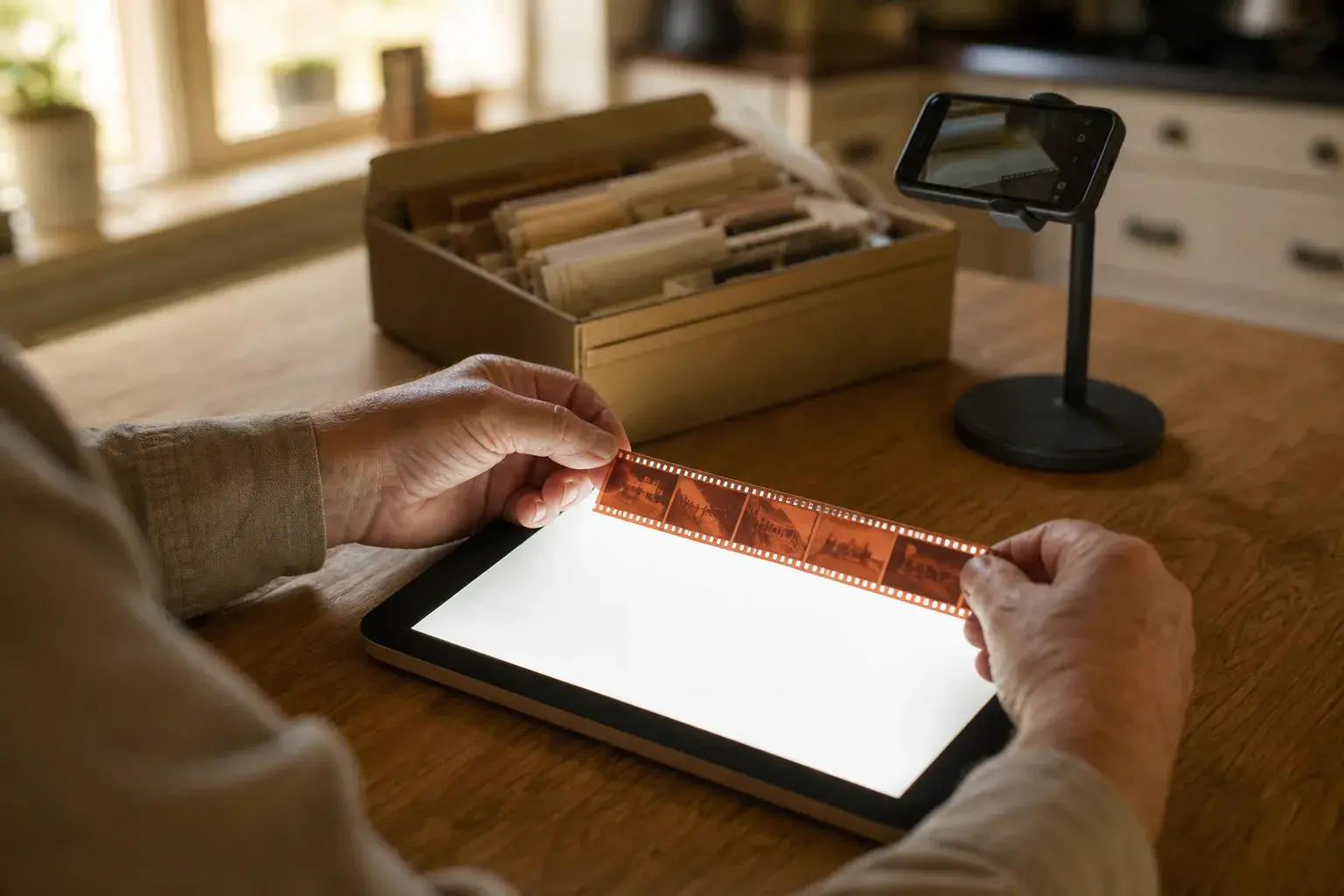
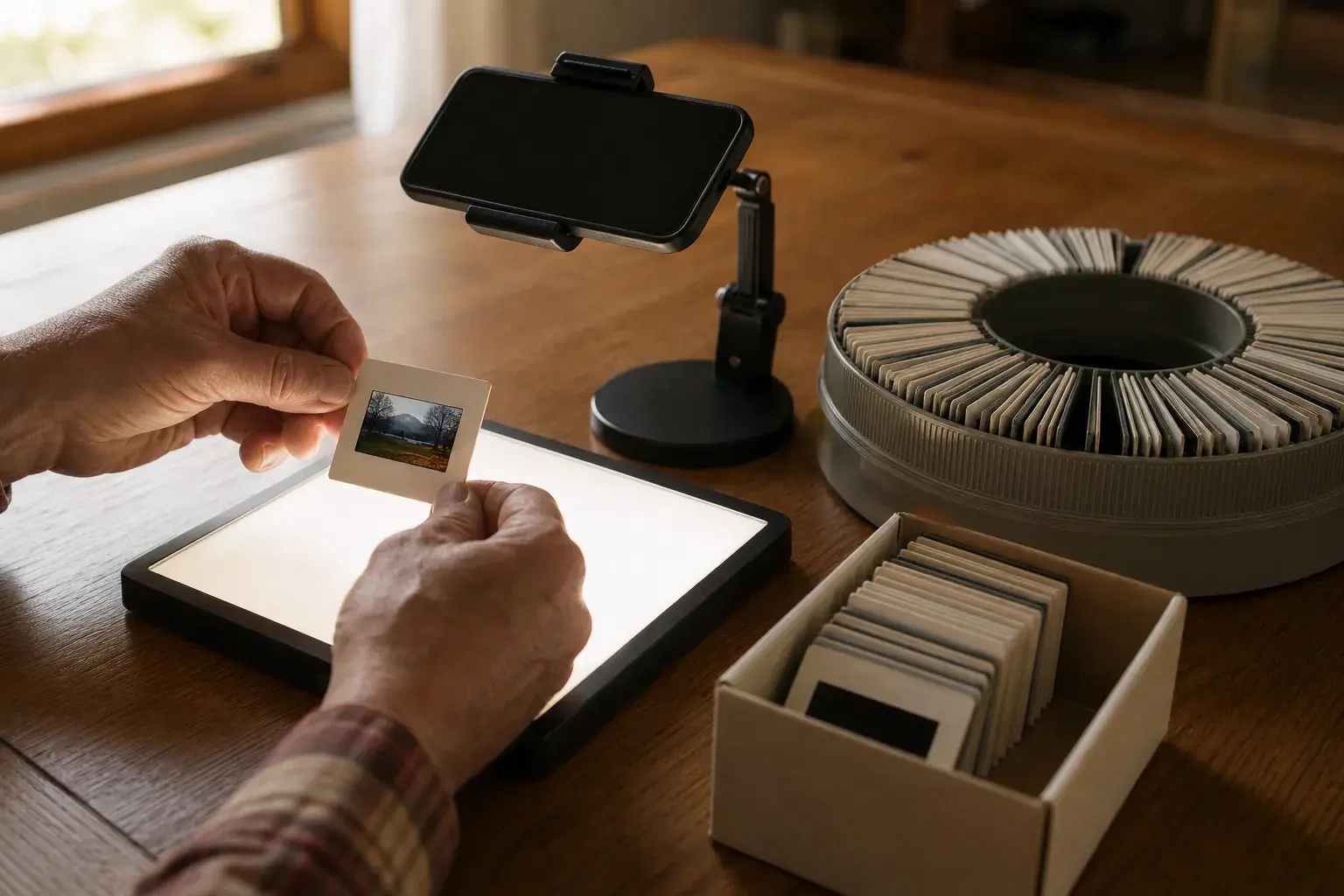
- A bright, even light source. An LED light pad (a tracing pad) is best. A tablet or laptop showing a plain white screen works with a sheet of printer paper on top to hide the pixels.
- Your phone on a stand, a small tripod with a phone clamp, or resting across two stacks of books, parallel to the table.
- A hand blower (a rubber bulb that puffs air) for dust.
- Cotton or nitrile gloves, or at least clean, dry hands. The Library of Congress advises handling film by its edges only; with slides, that means holding the mount, never the film.
- A scanning app that understands slides. Film Scanner has a Positive film profile and a Slide 35mm format, detects and crops the frame for you, and lets you scan for free.
You do not need the projector. Keep it for a family slide night if it still works.
Set up your scanning spot
- Dim the room and turn off ceiling lights above the table. A glossy slide reflects lamps and windows straight into the lens.
- Lay the light pad flat, wipe it and turn it to full brightness. Any speck on the pad will sit right behind your slide.
- Mount the phone directly above the slide, about 10 to 15 cm (4 to 6 inches) away for a 35mm slide. Look at the preview: the edges of the mount should be straight and parallel, not a trapezoid. If they slope, the phone is tilted.
- Keep a few slides within reach, in the order you took them out. Order matters more with slides than with anything else in the box (see "Keep the order" below).
How to scan a slide, step by step
- Set the film profile once. In Film Scanner, open the film settings and choose Positive, then Color (or Black & White for the rare monochrome slide), the Slide 35mm format (Slide 120 for medium format) and the orientation. Positive tells the app not to invert the picture, so this is the setting that matters most.
- Puff the slide clean. Hold it by the mount and blow both sides with the bulb. Never wipe the film itself.
- Place the slide the right way round. Look for text in the picture: a shop sign, a car number plate, writing on a shirt. If the letters read correctly, you are looking at the right side. If they are mirrored, flip the slide over. With no text, use what you know: the family house, which side the steering wheel was on, a part in someone's hair.
- Frame and focus. Let the slide fill most of the screen, with a thin border of mount around it, and tap the picture to focus. If the image turns soft when you move close, your phone may have switched lens. Move back a little, or choose the lens yourself in the app's Lens control.
- Take the picture without touching the phone. Use the timer or a Bluetooth remote shutter, so your tap does not shake the camera.
- Check and adjust. The app crops the frame. In the editor, Auto color gives a neutral starting point. For slides it deliberately skips the shadow correction it uses on negatives, so a deep blue sky or a dark red dress keeps its real color.
- Scan a whole tray as a set. Switch on Roll mode and keep shooting slide after slide without opening the editor. Slides from the same holiday were usually shot on the same film and faded the same way, so you can tune one look on the best frame, apply it to the whole set and export them together.
Getting exposure right
Slide film holds deep, rich shadows, which is part of its beauty and the main challenge in scanning. If faces fall into black, lift shadows in the editor rather than raising overall exposure, which would burn out the sky. If the sky is pure white, pull back highlights. Edits are non-destructive, so the original capture is always there.
Bring back faded and red slides
Color slides are made of three layers of dye: cyan, magenta and yellow. Over decades in a box, those dyes do not fade at the same speed. Douglas Nishimura, a research scientist at the Image Permanence Institute, explained that cyan was the least stable dye in the dark for most of the 20th century and magenta the most stable, which is why many Ektachrome and Agfachrome slides from the 1960s have shifted toward magenta. That is the familiar pink or red look of an old slide.
What you can do about it:
- Start with Auto color, then fine-tune. Pink or magenta slides need the tint moved toward green; red or yellow slides need the temperature moved toward blue.
- Use a neutral reference. Find something that should be gray or white (a wall, a cloud, a shirt) and adjust until it looks neutral. The rest of the picture usually follows.
- Restore saturation gently. Faded slides look flat. A little saturation and contrast bring them back; too much makes skin orange.
- For the slides that matter most, the Premium AI tools go further: Magic Scan corrects crop and color in one step and keeps a slide positive, and restoration can repair damage that sliders cannot. Keep the plain scan as well.
Kodachrome slides, with their cardboard mounts and rich colors, usually survive dark storage remarkably well. Their weakness is light: long or repeated projection fades them. If a Kodachrome slide looks pale and washed out overall, it may simply have spent too many evenings in the projector.
A 30-year study at the National Museum of Denmark found that storage conditions made the biggest difference: slides kept in a freezer barely changed, while slides in an office with changing humidity and light changed seriously. Scanning now captures the colors before they drift further.
Common problems and how to fix them
- The picture looks like a negative (inverted colors). The profile is set to Negative. Switch to Positive and scan again.
- Rainbow rings or ripples. On glass mounts these are Newton rings, caused by the film touching the glass. Try a slightly different angle of light, or have badly affected slides remounted in plastic. On a tablet screen, the ripples may be the pixel grid: add a sheet of paper as a diffuser.
- Dust and hairs that will not blow off. If they are inside a glass mount, the blower cannot reach them. Retouch the scan, or leave remounting to a lab.
- A haze or web-like spots. This can be mold or deposits on the film. Do not try to wash it off at home. Scan it as it is, keep it apart from your other slides, and ask a photo lab or conservator if the picture is precious.
- The slide is slightly curved and part of it is blurry. Old cardboard mounts can bow. Focus on the middle, and step the phone back a little so more of the slide falls within focus, then crop.
- Everything is too dark. The slide may have been underexposed when it was taken. Lift shadows and exposure in the editor; slide film often holds more than you can see by eye.
Phone, projector, slide scanner or service?
| Method | What it takes | Quality | Best for |
|---|---|---|---|
| Phone, light pad and app | Your phone and a light source | Very good for screens, sharing and prints up to about 8 x 10 in | Family collections, a few trays at a time |
| Projecting on a wall and photographing it | A working projector | Usually poor: skewed shapes, wall texture, a hot spot in the middle | A quick look, not a copy |
| Slide scanner or "film to digital" converter | A separate device | Ranges from basic to excellent | Thousands of slides, or archival masters |
| Flatbed with a backlit lid | A film-capable flatbed | Good, but slow (a few slides at a time) | People who already own one |
| Lab or mail-in service | Packing and shipping | Good to excellent | People who would rather hand the job over |
Projecting onto a wall sounds clever, but unless the camera sits right next to the projector lens the picture comes out skewed, and the wall adds texture. Photographing the slide directly, with light behind it, is simpler and sharper. If you have many thousands of slides, need very large prints or have slides with mold or serious damage, a dedicated scanner or a professional service is worth it. For a family collection of a few hundred slides, the phone gets you there without buying anything new.
Keep the order: carousels, boxes and file names
Slides were often sorted with care: a carousel for each trip, a box for each year. That order is information, so keep it.
- Work one tray or box at a time. Take slides out in order and put each one back in the same slot before you take the next.
- Name files to match. Something like "1974 Italy tray B 012" tells you the year, the trip, the tray and the slot. If you used Roll mode, export the tray as one roll and rename afterward.
- Write down what you know while it is fresh, and ask relatives. A shared folder of scans is a good reason to call the aunt who was on that trip.
- Back up in two places, such as your photo library and an external drive or cloud folder.
- Store the slides well afterward. The National Archives recommends a cool, dry place, with slides in metal or cardboard slide boxes or in plastic slide pages that pass the Photographic Activity Test (PAT). Avoid attics, basements and old PVC pages that smell of plastic.
Once the best slides are scanned, share them. You can turn a favorite into a real 4 x 6 postcard printed and mailed from the app, which is a lovely way to send a grandparent a photo of their younger self.
Frequently asked questions
Can you digitize slides with an iPhone?
Yes. Any recent iPhone camera is sharp enough for slides. Light the slide from behind with a light pad or a white tablet screen, hold the phone steady and parallel, and use a scanning app set to positive film. Film Scanner is on the App Store and on Google Play for Android phones.
What is the best way to digitize slides at home?
For most families, a phone on a stand above a light pad, with an app set to positive film, is the best balance of quality, speed and cost. A dedicated slide scanner makes sense for very large collections, and a flatbed with a backlit lid works if you already own one.
How long does it take to digitize slides at home?
Setting up takes about ten minutes. After that, cleaning, placing and capturing each slide takes well under a minute once you find a rhythm, so a tray of 80 slides is a realistic evening. Using Roll mode and one look for the whole tray saves most of the editing time.
Should I take slides out of their mounts to scan them?
No. The mount holds the film flat, protects it from fingers and carries the date and notes. Scan slides in their mounts. The only exception is a broken mount or a glass mount with heavy haze, which a lab can remount for you.