How to scan film negatives with your phone
Yes, you can scan film negatives with your phone. The setup, the light, the exact steps and the fixes that turn old film into sharp, true-color photos.
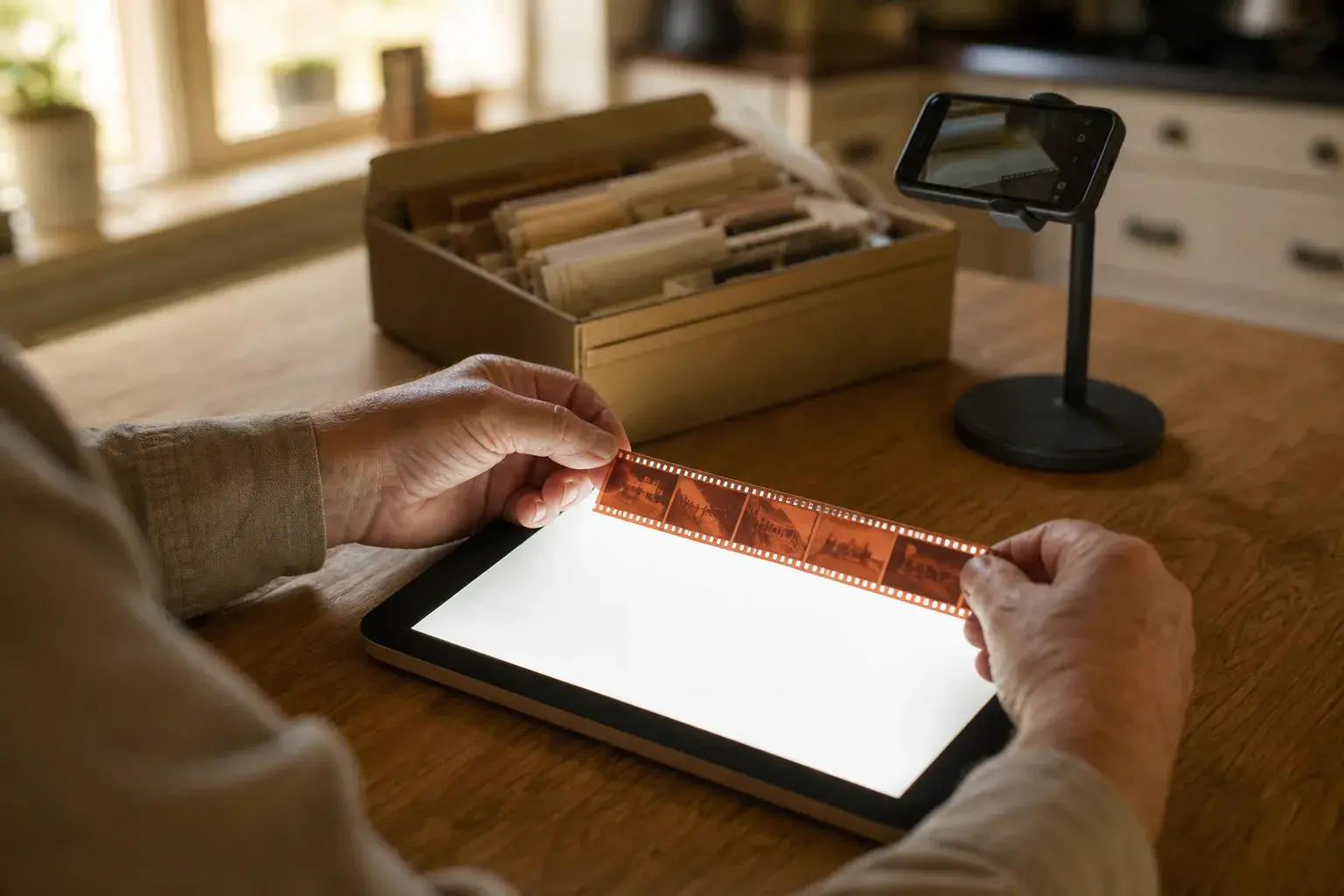
Yes, you can scan film negatives with your phone, and the results are better than most people expect. A recent iPhone or Android camera records more detail than you need for sharing and for everyday prints, as long as three things are right: the light behind the film, how flat and steady everything sits, and the software that turns an orange, inverted negative back into a normal photo.
This guide walks you through the whole process at a kitchen table. You will see what you need (most of it is already in your home), how to set up in about ten minutes, how to capture and convert a frame step by step, how to fix the problems almost everyone runs into, and when a lab or a dedicated film scanner is the better choice.
What you need
You do not need special equipment to start. Here is the short list:
- Your negatives. Strips of 35mm film are the most common. Medium format (120) film, older square 126 negatives and small 110 negatives all work the same way, and so do slides.
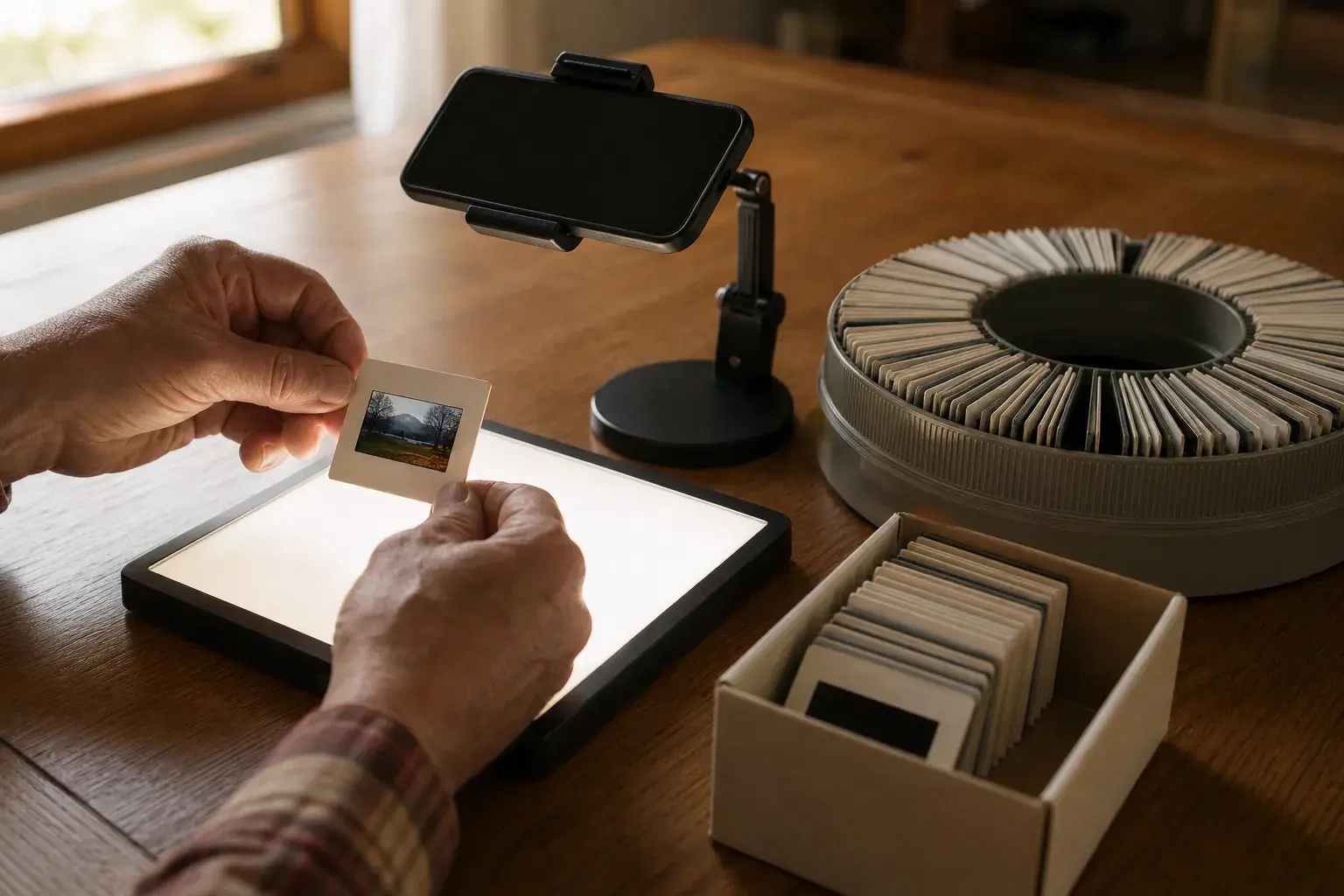
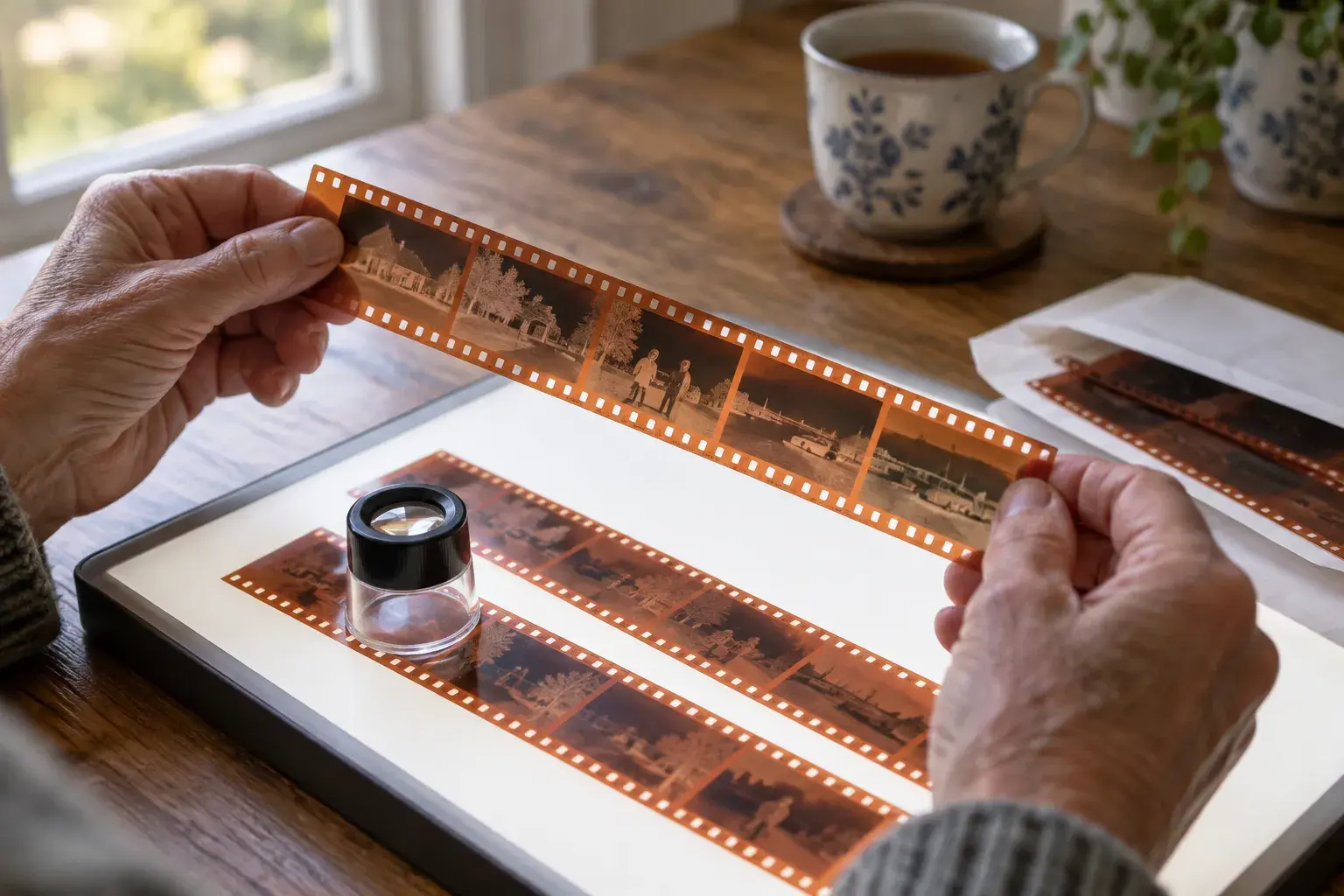
- A bright, even light source. The film has to be lit from behind, like a stained glass window.
- A way to hold the phone steady and parallel to the film. A phone stand, a small tripod with a phone clamp, or a stack of books with the phone resting across the top.
- Something to keep the film flat and block stray light. A film holder, or a piece of black card with a window cut to the size of one frame (36 x 24 mm for 35mm film).
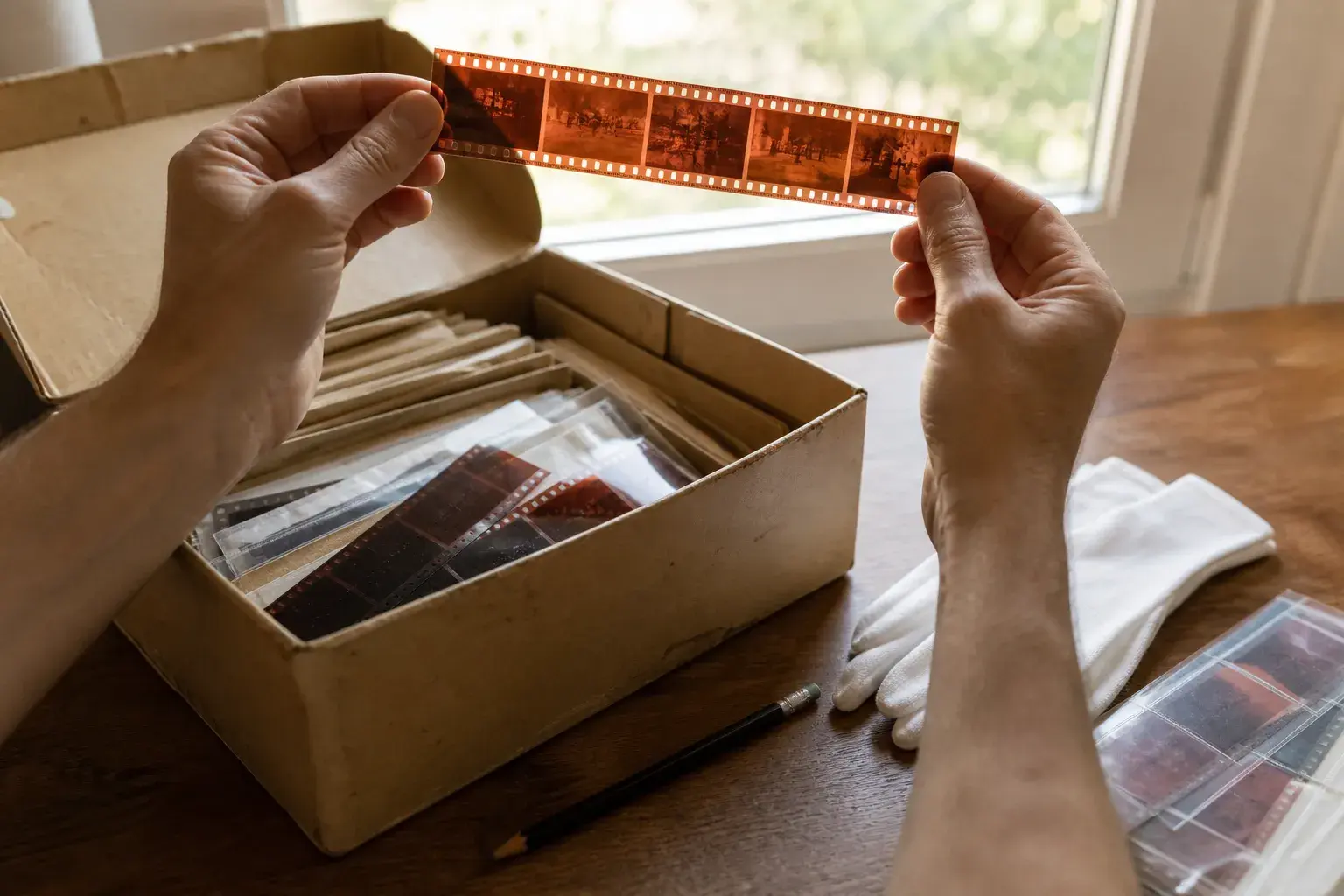
- A blower brush and gloves. The Library of Congress recommends nitrile gloves and handling film only by its edges.
- A scanning app that understands negatives. A normal camera app shows you an orange, inverted picture. Film Scanner detects the frame and shows the converted positive while you aim, and its Auto color button removes the cast the orange film base leaves behind. Scanning is free.
Which light source works best?
| Light source | Result | Tips |
|---|---|---|
| LED light pad (tracing pad) | Best: even, bright, no pattern | Set it to full brightness. |
| Tablet or laptop screen with a white page | Good, with one fix | Put a sheet of printer paper or frosted plastic between screen and film to hide the pixel grid. |
| Window on a cloudy day | Usable | Tape white paper to the glass to diffuse the light. |
| Phone flashlight or a desk lamp | Not recommended | Too uneven: the middle of the frame glows and the corners go dark. |
Set up your scanning spot in ten minutes
- Dim the room. Ceiling lights reflect off the shiny side of the film and wash out the picture. Turn them off or work with your back to the window.
- Lay the light source flat on a table and turn it to full brightness. Wipe it clean: every speck on the panel shows up in the scan.
- Clean the film. Hold the strip by its edges and puff dust away with the blower. Do not wipe it with a cloth or your sleeve; that drags grit across the image.
- Place the strip shiny side up. Most negatives have a glossy side (the base) and a slightly duller side (the emulsion, where the image lives). With the glossy side facing the phone, the picture reads the right way round. If the numbers printed along the edge read backwards, flip the strip or mirror the image later.
- Mask the light around the frame. Cover the rest of the glowing panel with black card or the film holder. Stray light around the frame lowers the contrast of every scan.
- Mount the phone parallel to the film, about 10 to 20 cm (4 to 8 inches) above it. Check the preview: the edges of the frame should be straight and parallel, not a trapezoid.
How to scan a negative with your phone, step by step
- Open Film Scanner and choose the film profile: color negative, black and white negative, or positive (for slides), plus the format and orientation. The profile tells the app how to convert the image, so this is the single most important tap.
- Frame the negative so it fills most of the screen, with a thin border of light around it. If your phone suddenly turns soft when you move very close, it may have switched to a different lens. Move back a little and zoom in 2x instead.
- Focus on the film. Tap the image to focus, ideally on an area with fine detail or on the edge of the frame. Film grain should look crisp when you zoom into the preview.
- Watch the live preview. The app shows the converted positive while you aim, so you can judge the picture before you take it, not after.
- Avoid shake. Use the delayed shutter, or a Bluetooth remote shutter, so tapping the screen does not move the phone at the moment of capture.
- Capture. The app finds the frame, crops it and inverts the colors. In the editor, tap Auto color for a neutral starting point. If a whole roll needs scanning, switch to Roll mode: you shoot frame after frame, tune one look for the entire roll and export them together, which keeps colors consistent across the set.
A typical strip of six frames takes a few minutes once your setup is in place. The first strip is always the slowest, so do not judge the method by it.
Getting the colors right
Color negatives look orange because of a built-in orange mask that helped the original prints come out right. That is why a simple "invert colors" filter turns them blue and cyan instead of natural. A scanning app compensates for the mask: Film Scanner reads the color of the clear film border when it inverts the frame, and Auto color then neutralizes the blue cast that is left in the shadows. That is why choosing the color negative profile matters more than any slider.
After the capture, check something that should be neutral: a white shirt, a gray sky, a concrete wall. If it leans blue or yellow, adjust temperature; if it leans green or magenta, adjust tint. Then set brightness and contrast for the faces, which are what people look at first. Every edit in Film Scanner is non-destructive, so you can always go back to the original.
Old negatives fade unevenly, and some lose more of one color than the others. You can recover a lot with the adjustment tools. For difficult frames, the Premium AI tools go further: Magic Scan cleans up dust, scratches, noise and color in one step, and restoration, upscaling and colorizing help with badly damaged or black and white photos. Use them on the photos that matter most, and keep the plain scan as well.
Black and white negatives are the easiest of all: there is no orange mask, so you only need to get exposure and contrast right.
Common problems and how to fix them
- The whole picture is blue or cyan. The orange mask was not compensated. Choose the color negative profile, not a black and white or positive one, then tap Auto color in the editor.
- Stripes, a grid pattern or rainbow ripples. You are lighting the film with a screen, and the camera sees its pixels. Add a diffuser (printer paper or frosted plastic) between screen and film, or lift the film a few millimeters off the screen.
- Blurry scans. Refocus on the film, step back slightly if the phone switched lenses, and use the timer or a remote shutter.
- Washed out, gray, low contrast. Stray light is reaching the lens. Mask the area around the frame and dim the room.
- Bright spots or reflections. A lamp or window is reflecting in the film. Turn it off or move it behind you.
- White specks and hairs. Dust on the film or on the light panel. Use the blower again and wipe the panel.
- Rainbow rings where the film touches glass. These are Newton rings. Use a film holder or a mask instead of pressing the film under ordinary picture frame glass.
- Curled film. Old strips often curl. A film holder keeps them flat; you can also leave the strips in their paper or plastic sleeves under a few books for a day before scanning.
How good is a scan from a phone?
A 12 megapixel phone photo of a 35mm frame is roughly 4,000 by 2,700 pixels once cropped. An 8 x 10 inch print at a sharp 300 dpi needs about 2,400 by 3,000 pixels, so a careful phone scan is enough for prints up to roughly that size and more than enough for screens, sharing and photo books. In practice, focus, steadiness and the quality of the light limit the result more than the number of pixels.
| Method | Setup | Speed | Best for |
|---|---|---|---|
| Phone and a scanning app | Minutes, at home | Seconds per frame | Family archives, sharing, prints up to about 8 x 10 in |
| Flatbed scanner with a film holder | Needs a scanner with a backlit lid | Slow, with software settings | Batches of strips if you already own one |
| Dedicated film scanner | A separate device and software | Slow per frame | Large prints and archival masters |
| Lab or mail-in service | Nothing to set up | Days or weeks away from home | People who would rather hand the box over |
A phone is not always the right answer. If you need museum-quality archive files, plan very large prints, or have film with mold or serious damage, a dedicated scanner, a lab or a conservator is worth it. For the family box in the cupboard, a phone gets most people to good photos the same afternoon.
After scanning: keep, back up and share
- Name the files with the year and place you know ("1987 Lisbon beach 03"). Future you will thank you.
- Back up in two places, for example your photo library and a cloud folder or external drive.
- Share the best ones. Family members often know names and dates you do not; scanning is a good excuse to ask them. You can also turn a favorite into a real printed postcard and mail it from the app, anywhere in the world.
- Put the negatives back safely, in sleeves, somewhere cool and dry. The Library of Congress suggests a relative humidity of 30 to 50 percent and room temperature or below, away from attics and basements. Not sure which ones to keep? Our guide on what to do with old negatives covers sorting, storing and safe disposal.
Frequently asked questions
Can you scan negatives with an iPhone?
Yes. Any recent iPhone camera is sharp enough. What matters is an even light source behind the film, a steady phone and an app that inverts the image and corrects the orange mask. Install Film Scanner from the App Store and choose the profile that matches your film.
Can you scan negatives with an Android phone?
Yes, the method is exactly the same. Film Scanner is on Google Play. Phones with a good main camera and manual focus by tap give the best results.
Do I need a light box to scan negatives with my phone?
Not necessarily. A light pad gives the most even light, but a tablet or laptop screen showing a white page works well with a sheet of paper on top as a diffuser. Avoid a bare desk lamp or a phone flashlight.
How can I just look at a negative on my phone?
On an iPhone, turn on Classic Invert in Settings > Accessibility > Display & Text Size, then point the camera at the negative. On Android, use color inversion in Settings > Accessibility. Color negatives will still look bluish, because inversion does not remove the orange mask, but it is enough to recognize faces before you scan. Our guide on how to read negatives explains what you are looking at, which side faces you and what the edge numbers mean.
Can I scan slides the same way?
Yes. Slides are already positive images, so choose the positive profile instead of a negative one. Take the slide out of a projector tray, hold it by the mount, and light it from behind just like a negative. Our guide to digitizing slides at home covers mounts, faded colors and keeping carousel order.